
Three Google Slides Accessibility Features You Should Know How to Enable
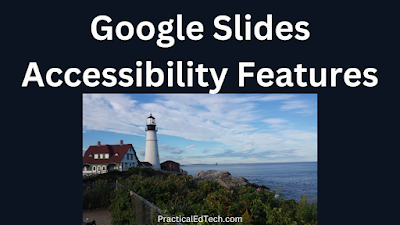
As the new school year approaches it’s a good idea to review some of the easily overlooked, but important features of some of the tools we use the most. Google Slides is one of those tools that I use a lot and has a lot of features that are easy to overlook. For example, unless […]
Three Google Workspace Updates to Note This Week

Just about every week Google makes updates to Google Workspace. Some only affect administrators of Google Workspace domains while others affect all end-users of Google Workspace products. This week there were three Google Workspace updates that teachers and students should note. More Accessibility Controls People who use screen readers, magnifiers, and braille now have more […]
Try This Tool for Picking Accessible Color Schemes

Earlier today I published a list of ways to improve the accessibility of your Google Docs, Slides, and Forms. On a related note, you can improve the accessibility of any slideshow presentation or website by choosing an appropriate color scheme. The Accessible Color Matrix hosted on Github makes it easy to identify accessible color schemes to […]
Google Docs, Slides, and Forms Accessibility

As the new school year approaches and you start to update some of your old Google Docs, Slides, and Forms take a moment to assess the accessibility of those materials. And if necessary, it’s fairly easy to improve the accessibility of your Docs, Slides, and Forms. Google DocumentsGoogle Documents has some built-in accessibility options that […]
How I Dubbed My Video About Creating a Professional Development Series

If you’re subscribed to my YouTube channel, you probably noticed that my latest video was dubbed into Spanish. No, I didn’t suddenly become fluent in Spanish (Clinton was in office during my last attempts at speaking in Spanish). I was able to dub the video into Spanish by using a new service called Aloud. Aloud […]
Reasonable Colors – Get Help Picking Accessible Color Schemes

Reasonable Colors is a new open-source project developed by Matthew Howell. The purpose of the project is to help developers and others choose high-contrast, accessible color schemes for their projects. Reasonable Colors is easy to use to find an accessible color scheme. To use Reasonable Colors all you need to do is select the main […]
Five Chrome Settings You Need to Know

Google Chrome is far and away the most popular web browser amongst readers of this blog (68% of you use Chrome, the next most popular choice is Safari at 20%). If you’re using Chrome and or your students use Chrome, there are some helpful settings that you should know how to use. Knowing what these […]
PhET Releases Ten Updated Simulations With Interactive Descriptions
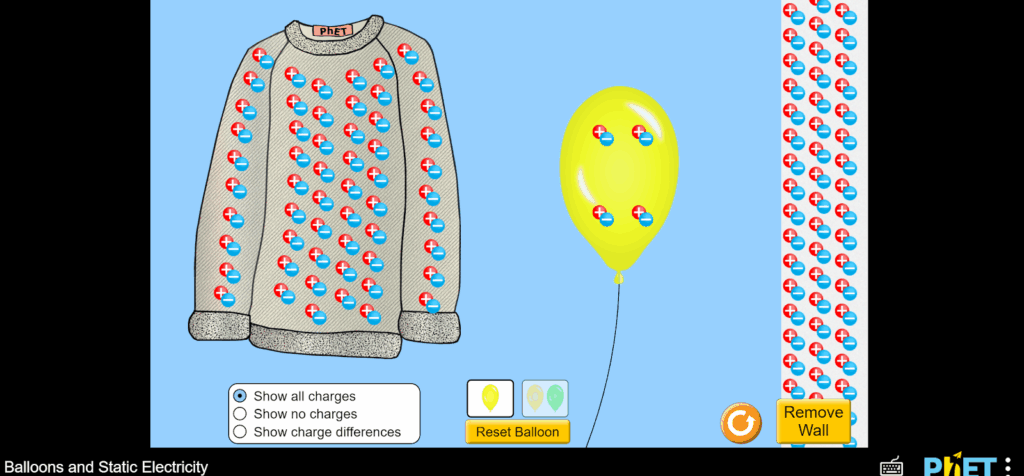
If you follow me on Twitter, you may have already seen this news but it’s worth sharing here as well. PhET now has ten simulations that include interactive descriptions. This makes the simulations accessible to students who rely on screen readers to access the web. Read PhET’s announcement here. We are excited to formally announce […]
Read Aloud in Edge and Other Immersive Reader Uses
Yesterday morning I published a blog post about using the Read Aloud Chrome extension. In the introduction to that post I mentioned that I usually recommend using Immersive Reader in Microsoft Edge if you need to regularly have webpages read aloud. A reader emailed me this morning to ask why I prefer Immersive Reader. Here’s […]
Read Aloud in Chrome
My usual recommendation for teachers and students who need webpages read aloud is to use Immersive Reader which is built into Microsoft Edge. But if Edge isn’t available to you then you might want to try the Read Aloud extension for Chrome. The Read Aloud extension does exactly what its name implies, it reads pages […]
Five Helpful PowerPoint Features You Might Be Overlooking

PowerPoint isn’t the flashiest ed tech tool on the block and it certainly isn’t the newest. In fact, you might have read “PowerPoint” and thought “old.” But as old as it is (34 years) there are new things added to it and hidden gems within it that keep it going strong. If it has been […]
How to Create Live, Subtitled Translations of Presentations

One of the questions we answered during this afternoon’s session of Two Ed Tech Guys Take Questions was, “I want to be able to translate my class discussions into Spanish in real-time and project that to a small group of students in my music class that do not speak English. Is that possible?” The answer […]
Accessibility in Google Docs and Slides

On Saturday morning I published a video about word art, fonts, and special characters in Google Docs and Slides. Later in the day someone Tweeted at me to “make sure the fonts are accessible.” I replied with a section of my free Practical Ed Tech Handbook that is dedicated to accessibility. An excerpt of that […]
Grackle – Check Slide and Document Accessibility

This spring we have some grackles nesting in our hanging plants and in the eve of our covered back porch. Every morning I take a quick look at them when I’m drinking my coffee and letting our dogs out. This morning, looking at one of the mother grackles reminded me of a Google Docs and […]
Enable Audio and Video Captions on Any Page in Chrome

This week Google rolled-out the latest update to Chrome. In the latest version there is now support for automatic captioning of audio and video on any web page that you visit in the Chrome web browser. The captions will work whether or not the audio is played aloud. When enabled, captions will be displayed at […]
How to Change Your Mouse Pointer Size and Color

Earlier this week I looked at one of my students’ computers and noticed that he had made his mouse pointer red and about three times its normal size. When I asked him why he changed it his answer was, “it’s easier to see.” I suppose that I should have known that would be his answer. […]
Live Transcription in Zoom – Free for All Who Need It

About six weeks ago I published a video about how to enable automatic captions in Zoom. At the time, that feature was only available in the paid versions of Zoom. Since then Zoom has made two updates to their policy about access to live captioning. First, Zoom now refers to live captioning as live transcription. […]
Some of my Favorites – Grackle Slides & Docs

This week is school vacation week here in Maine. I usually take this week off to go ice fishing on Moosehead Lake. Unfortunately, that’s not happening this year. Instead I’ll be “staycationing” and working on some projects around home. While on my staycation I’ll be sharing some of my personal favorite tools. Grackle Slides is […]
G Suite Audio, Accessibility, and Timelines – The Week in Review

Good morning from Maine where we play outside even if it’s cold and snowy. Sometimes that means doing traditional snow activities like skiing and sledding while other times it just means knocking some snow off the swings and having fun in our snowsuits. Whether the weather is hot or cold where you are, I hope […]
Type Studio – A Truly Unique Way to Edit Your Videos

Type Studio is a new video editing tool. When I used it for the first time yesterday I actually said aloud, “Whoa! That’s Awesome!” What made me say that was using the editor to clip a section of video. With video editing tools you have to drag and select a section to delete it or […]
Save the Captions from Your Google Meet Calls

CaptionSaver Pro for Google Meet is a new Chrome extension that launched on Product Hunt earlier this week. CaptionSaver Pro does two important things for Google Meet users. First, it will automatically turn on captions when you start or join a Google Meet call. Second, it will automatically create a text file containing the captions. […]
An Easy Way to Have PDFs Read Aloud

Yesterday, during Two Ed Tech Guys Take Questions and Share Cool Stuff I answered a question about how to have PDFs read aloud. Specifically, the person asking the question wanted an option for having PDFs that are stored in Google Drive read aloud. Additionally, Read & Write for Chrome wasn’t doing the trick. So my […]
How to Edit the Captions in Your YouTube Videos – Fall 2020 Update

Last spring I published a video about how to adjust the captions that are automatically generated for the videos that you upload to your YouTube account. Recently, YouTube made some changes to the way that the caption editing process works. Those changes are for the better as they’ve made it easier to adjust the correlation […]
How to Simultaneously Caption and Translate Presentations

In this week’s episode of Two Ed Tech Guys Take Questions and Share Cool Stuff Rushton and I addressed a question about improving the accessibility of presentations for ELL students. One of my suggestions was to try using the caption and translate option that is built into the online version of PowerPoint. In the online […]
How to Use Immersive Reader in Microsoft Forms
A couple of days ago I wrote about recently discovering that Immersive Reader works in Microsoft Forms. Immersive Reader is Microsoft’s free accessibility tool that enables students to hear text read aloud. It also enables students to see text in larger size, in greater contrast, and in greater spacing. When used in Microsoft Forms Immersive […]
Immersive Reader in Microsoft Forms – Quiz Questions Read Aloud

Over the weekend I read Microsoft’s announcement that Immersive Reader will soon be available in PowerPoint (“soon” was left undefined in Microsoft’s announcement, that usually means a couple of months). What I also learned from the announcement is that Immersive Reader is now available in Microsoft Forms. Apparently, it has been there for a little […]
Two Ways to Quickly Create Transcripts of YouTube Videos
About a week ago I hosted a webinar for an organization that hired me this summer and in the summer of 2018. The webinar was about improving the accessibility of online resources that we share with our students. One of the things that I covered in that webinar was how to improve the accessibility of […]
A Handy Tool for Picking Accessible Color Schemes

Earlier today I hosted a webinar about tools that teachers can use to improve the accessibility of the slides, documents, and videos that they create for their students. In that webinar I shared a simple tool that is quite helpful when trying to determine what color combinations you should use on your slides or documents. […]
How to Check the Accessibility of Your Google Slides

Yesterday afternoon I saw someone on Twitter ask if there is a way to evaluate the accessibility of a slide presentation. My answer was to try Grackle Slides. Grackle Slides is a Google Slides add-on that will evaluate the accessibility of your presentation and give you suggestions on how to improve the accessibility of your […]
Tactiq – Record the Captions in Google Meet

Tactiq is a new Google Chrome extension that lets you record the captions generated by the automatic captioning tool in Google Meet. You can use it to record and save all captions or select just some captions to save. When the conversation in Google Meet is over, you can save the captions as a text […]
Book Creator Adds New Accessibility Features

Book Creator is a tool that I have been using and recommending for years for making multimedia ebooks. You can use it as an iPad app or in your web browser. This week Book Creator announced that it now works in Microsoft Edge as well as Chrome and Safari. That’s not the only product enhancement […]
Tips on Using Voice Typing in Google Documents
A couple of weeks ago I published an article and video about accessibility settings and tools that are available in Google Documents. One of those tools is voice typing. What I forgot to mention in that piece, as a few people have pointed out, is that you have to speak very clearly when using voice […]
How to Add Alt Text to Images in Google Documents

In this week’s Practical Ed Tech newsletter I included a seven page handout containing tips and tutorials for improving the accessibility of documents, slides, websites, and videos. In that handout was a note about adding alt text to images in Google Documents. It’s an easy thing to do that can make your documents more accessible […]
An Overview of Google Docs Accessibility Options

A couple of weeks ago I published an overview of tools to improve the accessibility of websites, videos, and slides. I thought that I should expand on that article by creating an overview of accessibility options available in Google Documents. To that end, I made the following video overview of Google Docs accessibility options. In […]
Firefox Accessibility Options

After yesterday’s post about tools for improving the accessibility of websites, slides, and videos I got some feedback from readers who noted that I didn’t mention anything about Firefox. That wasn’t intentional, it was a complete oversight on my part because I personally don’t use Firefox that often and none of my students do either. […]
Tools to Improve the Accessibility of Websites, Videos, and Slides

We all have different needs and preferences when it comes to consuming the media in our lives. Our students are the same. Some need webpages read aloud, some need different color schemes or fonts, and others need captions enabled on videos. Those are just a few of the things that can be done to improve […]
How to Adjust the Captions on YouTube Videos

This week’s Practical Ed Tech newsletter featured a few things that we can do to improve the accessibility of the slides and videos that we use in our classrooms. One of those things is to turn on the captions when playing a YouTube video in class. Another is to create a transcript of the YouTube […]
The Practical Ed Tech Podcast – Episode #15 Featuring Mike Tholfsen

This afternoon I had the opportunity to talk with Mike Tholfsen from Microsoft. Mike is a Product Manager on the Microsoft EDU team. In the podcast we talked about Immersive Reader, digital ink in OneNote, Microsoft Translator, and some of the ways that those tools can be used by teachers and students. You can find […]
Microsoft Forms Will Soon Have a Read Aloud Option
Earlier today Microsoft announced a slew up updates to popular classroom tools including PowerPoint, Word, OneNote, and Forms. The update that jumped out at me is the addition of Immersive Reader to Microsoft Forms. Microsoft Forms is the Microsoft equivalent of Google Forms. Teachers can use it to create surveys and quizzes including automatically graded […]
How to Add New Fonts to Google Docs, Slides, and Sheets

Last week Google announced the addition of a new series of fonts that you can add to Google Docs, Slides, Sheets. The new fonts are called Lexend fonts. They are designed to improve reading speed by avoiding the visual crowding that is associated with some font styles and types. You can read more about the […]
How to Add and Edit Alt Text in PowerPoint Presentations

A few weeks ago I published a video about how to add alt text to pictures in Google Slides. That video was prompted by a friend’s request for help. This morning a reader asked me about using alt text in PowerPoint. So I recorded the following short video to demonstrate how you can add alt […]
Seven Microsoft Product Updates for Teachers to Note

Over the last six or seven weeks Microsoft has rolled-out some notable updates to their products that teachers and students use most. I’ve covered some of those updates in blog posts here and some I have only shared on social media. Here’s a recap of noteworthy updates to Microsoft products made in the last seven […]
How to Use the Read-aloud Function in Microsoft Edge
Edge is Microsoft’s web browser that replaced their classic Internet Explorer. Edge has a lot of handy features including a customizable read-aloud function. The read-aloud function has been available in the Windows version of Edge for quite a while. This morning, thanks to Mike Tholfsen I learned that the read-aloud function is available in the […]
How to Add Alt Text to Images and Videos in Google Slides

Alt text is text that you can add to images and videos to describe what they are and or what they contain. Adding alt text can make your materials that you post online more accessible to more visitors. This morning a friend of mine asked if it is possible to add alt text to images […]
How to Automatically Caption and Translate PowerPoint Presentations

Late last year Microsoft introduced real-time captioning and translation of PowerPoint presentations. At that time it wasn’t available in all versions of PowerPoint. That changed this week when Mike Tholfsen, product manager for Microsoft EDU, Tweeted that real-time captioning and translation is now available in all versions of PowerPoint for Windows, Mac, and Web. Watch […]
More Immersive Reader News – Thinglink Integrates Immersive Reader

Earlier I shared the news that Microsoft is adding their popular accessibility too, Immersive Reader, to Microsoft Forms. Shortly after I received that news from Mike Tholfsen I got an email from Thinglink informing me that they’re also adding Immersive Reader to their excellent image and video annotation tools. Thinglink is a service that I […]
Immersive Reader is Being Added to Microsoft Forms

Immersive Reader is a fantastic accessibility function available in many of Microsoft’s most-used products including Word and OneNote. Thanks to a Mike Tholfsen Tweet, this morning I learned that Immersive Reader will be available in Microsoft Forms later this summer. Immersive Reader in Microsoft Forms will enable students to have passages, questions, and answer choices […]
How to Use the Google Dictionary Chrome Extension

The Google Dictionary Chrome extension is a handy little tool that lets you highlight a word on any webpage to quickly find a definition and hear a pronunciation of that word. Google Dictionary isn’t the only Chrome extension that has this capability, but it is the only one that Google itself offers. In the following […]
A Chrome Extension for Clutter-free Reading and Printing

Mercury Reader is a Chrome extension that removes sidebar content from articles that you view in your Chrome web browser. It will hide banner ads, suggested “related” articles, and anything else that is not a part of the primary article on the page you are viewing. When you use Mercury Reader to print an article, […]
A Master List of Resources About Microsoft’s Inclusive Classroom Tools

Microsoft offers many excellent tools that improve the accessibility of documents, web pages, PowerPoint presentations, and other online media. Many of those tools are included in what Microsoft calls Learning Tools. A couple of weeks ago Microsoft announced ten updates to their Learning Tools. Microsoft offers free professional development training packs that you can use […]
Anyone Can Learn to Type Thanks to Typing Club’s Accessibility Settings

Typing Club is a free typing instruction site that offers some unique features for students and teachers. One of those features that I covered in depth last year is the story-based typing practice activities. In those activities, demonstrated here, students unlock stories as they type. Unlocking the next part of the story provides and incentive […]
Ten Awesome Updates to Microsoft’s Learning Tools

Microsoft’s free Learning Tools keep getting better. This week Microsoft announced ten updates that are either available now or will be available soon to Word and OneNote users. And if you’re not currently using Word or OneNote some of these updates just might make you give Word and OneNote a try. Here are some of […]
Short Overviews of Immersive Reader in Word and OneNote
Immersive Reader is one of the central components of Microsoft’s accessibility tools for inclusive classrooms. Immersive Reader will read documents aloud. It can be customized to highlight each word or each syllable as a document is read aloud. Users of Immersive Reader can also select the voice in which a document is read aloud and […]
Learning About Microsoft’s Tools for Inclusive Classrooms

Yesterday Mike Tholfsen Tweeted about Microsoft’s Teacher Training Packs. Teacher Training Packs are collections of resources that are designed to help IT administrators, technology specialists, and curriculum directors lead professional development workshops centered around various Microsoft tools (most of which are completely free for educators). There are three categories of Teacher Training Packs. Those categories […]
How to Edit the Captions on Your YouTube Videos
This morning on Twitter I was asked about the possibility of editing the captions that are automatically generated by the Google Slides captioning tool. The question was raised by Michelle Joyce in response to my blog post about using the Google Slides captions and Screencast-o-matic to create flipped video lessons. While you can’t edit the […]
Coming Soon to PowerPoint – Real-time Captions and Translations

Earlier this year Google added automatic captioning to Google Slides. This week, via The Verge, I learned that Microsoft is adding automatic captioning and translation to PowerPoint starting in January. The automatic captioning will work when you are displaying your slides in presentation mode. You will have a choice of languages in which to display […]
Turn Text to Speech With the Voicepods Chrome Extension
A couple of months ago I discovered a new text to speech tool called Voicepods. When I first tried it and wrote about it Voicepods would only create voice recordings based on text that you wrote. This week Voicepods launched a free Chrome extension that will let you have the text of any webpage read […]
New Accessibility Options in Flipgrid and Other Microsoft Products

This week Microsoft unveiled a slew of new accessibility options for the services that teachers and students use most. One of those features is the inclusion of Immersive Reader in Flipgrid. Immersive Reader is a free service that students can use to have text read aloud to them. Immersive Reader not only reads aloud it […]
How to Use Automatic Captioning in Google Slides

Earlier this week Google announced a new automatic captioning feature for Google Slides. That feature is slowing rolling-out to users over the next couple of weeks. The new feature appeared in my account yesterday morning. If you haven’t seen automatic captions in Google Slides, watch my short demonstration embedded below.
How to Use the Read-aloud Option in Microsoft Edge

Last week I featured some accessibility extensions for Google Chrome. For those who prefer to use Microsoft Edge there are some excellent accessibility options built into that browser. Those options include a read-aloud function and a simplified reading view of webpages. Watch my video that is embedded below to learn how to use the read-aloud […]
G Suite and Chrome Accessibility
Accessibility options for G Suite for Education services and Google’s Chrome browser have improved in the last couple of years. If you use these services with students who need improved accessibility options, the G Suite user guide to accessibility is a resource that you should bookmark. The user guide is divided into sixteen sections. In the first […]
Grackle – Assess the Accessibility of Your Google Docs & Slides

Grackle is a service that will check your Google Documents, Slides, and Sheets for accessibility. It is available as an Add-on for Google Docs, for Google Slides, and for Google Sheets. With the Add-on installed Grackle will run a check for visual accessibility then make suggestions for improvements. When you run Grackle’s accessibility checker it […]
Adverbs, Themes, and Labels – New Immersive Reader Features

Immersive Reader is a free add-in for Word, OneNote, Outlook, and Edge enables students to have articles read aloud to them at pace that meets their needs. Additionally, Immersive Reader will identify individual syllables, highlight each word as it is read, and identify parts of speech for students. It has become my go-to recommendation whenever […]
Picture Dictionary and Custom Colors Added to Immersive Reader

Microsoft’s Immersive Reader just might be my favorite accessibility tool. This free add-in for Word, OneNote, Outlook, and Edge enables students to have articles read aloud to them at pace that meets their needs. Additionally, Immersive Reader will identify individual syllables, highlight each word as it is read, and identify parts of speech for students. […]
Immersive Reader on iPads

When I was at the BETT Show last month I learned about the planned expansion of Microsoft’s Learning Tools including Immersive Reader. Part of that expansion rolled out yesterday with the addition of Learning Tools for Word on iPads. NEW! Word for iPad on @Office365 now has shipped Learning Tools! Check the “View” tab #mieexpert […]
How to Use Microsoft Translator
Last week I wrote that Microsoft Translator was the coolest thing that I saw at BETT. If you haven’t tried Microsoft Translator, watch my video below to see how it works. For a demo of Microsoft Translator working in PowerPoint in a classroom, watch this video from Microsoft. (Jump to the 1 minute mark).
A Short Overview of Immersive Reader from Microsoft
Immersive Reader is a free tool available from Microsoft. As I wrote earlier this week, Immersive Reader will read aloud the articles that students have in their OneNote notebooks. Immersive Reader does more than just read articles aloud. It will identify to students the nouns, verbs, and adjectives within an article. Students can also choose […]
Immersive Reader – A Fantastic Addition to OneNote

For the last six weeks I have been making a concerted effort to increase my working knowledge of OneNote in order to be able to make better comparisons between it and its competitors. One of the aspects of OneNote that I appreciate is its flexibility. An example of that flexibility is found in a free […]
Use a Screen Reader With Google Classroom
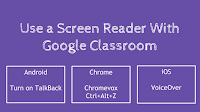
Earlier this week a follower of the Practical Ed Tech Facebook page asked if a screen reader could be used for Google Classroom. You can use a screen reader with Google Classroom. If you use a Chromebook, you can use Chromevox with Google Classroom. Users of the Android app for Google Classroom can use TalkBack. […]
Two Free Speech-to-Text Tools
This morning on Practical Ed Tech Live I answered a request for a free speech-to-text tool. There were two that I suggested. One was Dictation.io and the other was Dictanote. On Dictation.io you can simply click “start dictation” then start having your voice transcribed into a text document. No registration is required in order to […]
Google’s Guides to G Suite Accessibility Options
Google offers two G Suite accessibility guides. There is a guide for administrators and there is a guide for users. The G Suite user guide to accessibility is designed for end users. The user guide is divided into sixteen sections. In the first section you will find recommendations for the best screen readers to use while using […]
Text to Speech in Chrome
Earlier today Charles on Twitter asked me for a recommendation for a Chrome extension that offer text to speech capabilities. The first thing that came to my mind was Announcify. With Announcify installed in your browser any time you’re viewing a webpage you can simply click on the Announcify icon in your browser and have […]
Improved Voice Typing in Google Docs – A List of Commands

Yesterday, Google released a bunch of updates to G Suite for Education. One of those updates was an expansion of the voice typing commands available in Google Documents. The voice typing commands in Google Documents now includes options for highlighting text, inserting links, adding comments, and creating and editing tables in your documents. Visit Google’s complete […]
Free Guides to Windows 10 Accessibility and Deployment in Schools
A few weeks ago Microsoft released more than 200 free ebooks. Those ebooks cover everything from Windows 10 accessibility settings to keyboard shortcuts to school-wide deployment of Windows 10 (links open PDFs). The list of free ebooks isn’t limited to just Windows 10. As you browse the list you will find free guides to OneNote, Outlook, […]